
The motion control is only used for the CNC image measuring instrument, the manual image measuring instrument can skip this chapter.
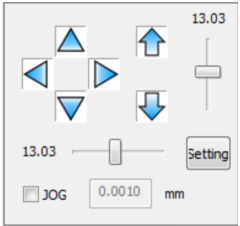
The movement of the machine worktable can be controlled by the motion control panel.

Method 1: Hold down the middle mouse button at any position in the image area, and drag the mouse in any direction. You can move the worktable in the direction of the arrow.
Method 2: Right-click at any pixel point of the image area, select the "Move to here" menu option, and you can move this point to the center of the image area.
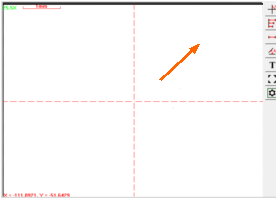
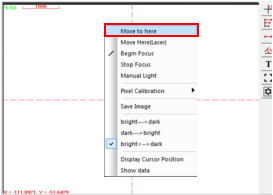
Method 1 Method 2
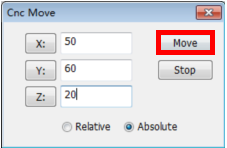
Step 1: Select the"Imageà Move to ..." In the main menu.
Step 2: Enter the coordinate values of a point in the popup dialog box, and then click the “Move” button, and you can move this point to the center of the image area.
the “Relative” option represents that the the movement is relative to the current position, and the “Absolute” option represents that the movement is relative to the machine origin.


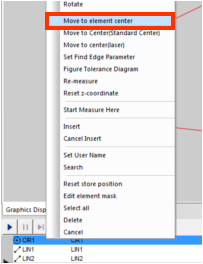
Step 1: Right-click an element in the element list area or right-click an element in the graphics area.
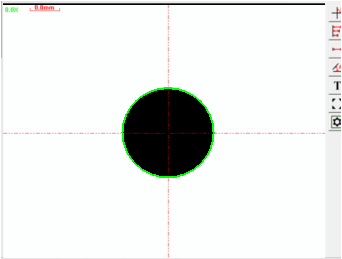
Step 2: Select the "Move to Element Center" menu option to move the center of this element (such as the center of the circle, line etc.) to the center of the image area.
Name: Mikrosize
Mobile:0086-13918745376
Tel:0086-769-85331789
Email:mikrosize@188.com
Add:NO7 East Xingfa Road Wusha, Changan Town, Dongguan, China.
 Microsize
 Microsize