
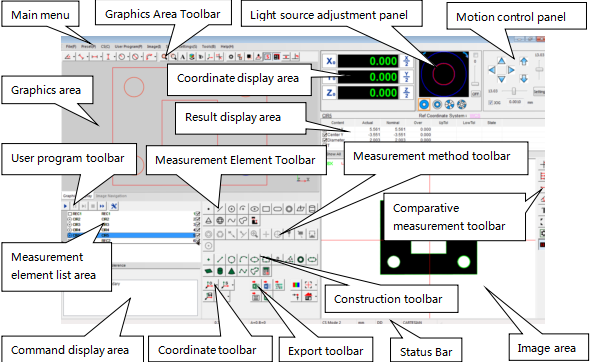
Main menu:Store the main functions and not commonly used functions of the software. In order to keep the interface clean, many not commonly used functions can be found in the main menu.
Image area:Area for displaying the image and measuring operation.
Graphics area:The results of the measurements are displayed in the form of geometric graphics, 2D and 3D graphics are supported in this area, it is also known as "CAD area".
Graphics toolbar: Mark dimensions on the geometric graphics and observe the geometry.
Coordinate display area:Display the XYZ triaxial scale coordinate data.
Motion control panel:Control the XYZ triaxial movement. (Note: The manual version of this software without this panel)
Light source adjustment panel:Adjust the brightness of the contour light, surface light, coaxial light and open the laser indicator.
Comparative measurement toolbar:Measure the image with comparative measurement method.
User program toolbar:The stopping, running, and setting operations of the user program are carried out in this toolbar。
Measurement element list area:Display the extracted geometric elements, such as points, lines, circles, and so on.
Result display area:Display the measurement results of each selected element, such as "size", "tolerance", etc.
Command display area: display the name of the element and the coordinate system.
Measurement element Toolbar:Select the type of element to be measured, such as point, line, circle, arc, etc.
Measurement method toolbar:Select the measurement method for each element to be measured.
Construction toolbar:Construct the composite elements with the existing elements.
Coordinate toolbar:Create and save coordinate systems。
Export toolbar:Export the resulting data.
Status Bar:Display the status of the program, as well as display some tips and other information.
In addition, the map area and the scan area are in the same position as the graphics area
Name: Mikrosize
Mobile:0086-13918745376
Tel:0086-769-85331789
Email:mikrosize@188.com
Add:NO7 East Xingfa Road Wusha, Changan Town, Dongguan, China.
 Microsize
 Microsize