
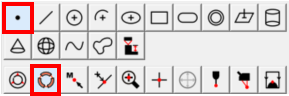
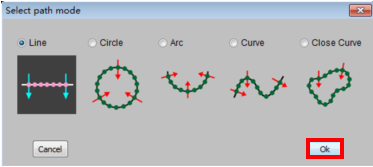
Step 1: Click the "Point" element button and the "Subsection" method button, Pop up the "Select path mode" dialog box, select the corresponding element type of the measured image contour, as shown below, such as the straight line, circle, arc, open curve, closed curve. Click the "OK" button to complete the operation.
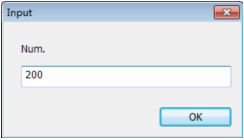
Step 2: Extract the starting point and the direction point with line intersection method. Enter the number of points to be extracted in the pop-up dialog box, and the software will automatically scan the image contour.
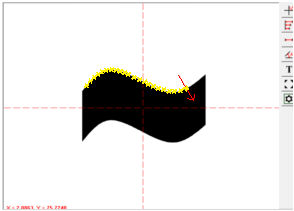
The following describes the ways of extracting points according to different elements.
Straight line scanning: Scanning a straight line need to extract 2 points. The first point is the starting point, the second point is the end and direction point.
Circle scanning: Scanning a circle need to extract 3 points. The first point is the starting point, the second point and the third point are the points on the circle.
Arc scanning: Scanning an arc need to extract 3 points. The first point is the starting point, the second point is the direction point, and the third point is the end point.
Open curve scanning: Scanning an open curve need to extract 3 points. The first point is the starting point, the second point is the direction point, and the third point is the end point.
Closed curve scanning: Scanning a closed curve need to extract 2 points. The first point is the starting point,and the second point is the direction point.
Name: Mikrosize
Mobile:0086-13918745376
Tel:0086-769-85331789
Email:mikrosize@188.com
Add:NO7 East Xingfa Road Wusha, Changan Town, Dongguan, China.
 Microsize
 Microsize