
You can select the "File à New" menu option to create a new user program, and you can also choose to open the exsisting user program, or save the current user program to a folder. The extension of the user program is ".ins"
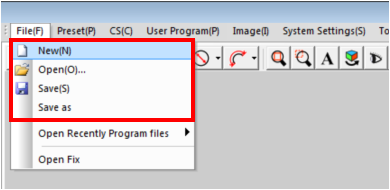
(1) Creating the user program
The software records the steps of the measuring, constructing, and moving operation in sequence, and generates the elements. These elements displayed in the element list area in sequence, and the user program is automatically created.
(2) Executing the user program
You can execute the user program by clicking the Run, Pause, Continue, Stop, and Repeat button on the User Program toolbar. The software automatically measures the elements in the element list area one by one when executing the program. You can also set whether the measurement results to be automatically exported at the end of the program execution (How to automatically export the results see the user program settings described later)
(3) Modifying the user program
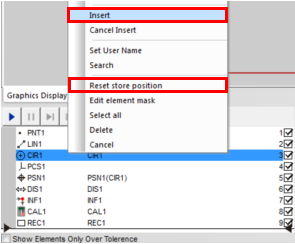
Click on the right mouse button on a certain element in the element list area, you can insert an element or a step in the list by selecting the "insert" menu option, or selecting "Reset store position" to change the position of the element in the list, thus to change the order of the program. You can also make other changes to the user program.
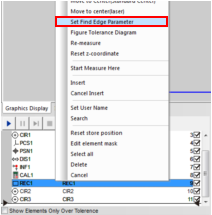
You can set the Find-Edge-Tool parameters of an element in the program. Such as the light source parameters, the edge parameters, and whether to autofocus. When using the “subsection” method to measure the elements, you can also set the Find-Edge-Tool of each segment. Click on the right mouse button on an element in the element list area, chose the "Set Find Edge parameter" menu option, open the dialog box as follows:
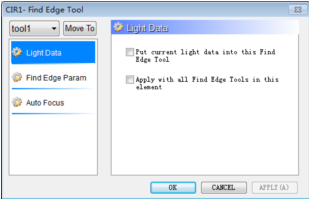
You can make the following settings in the “Find Edge Tool” Settings dialog box
(1) Light source data:
You can overwrite the current light source data of a certain “Find-Edge-Tool”with the surface brightness value and contour brightness value that hase been set on the “light source adjustment panel”, or overwrite the light source data of all elements.
(2) Find Edge parameter:
You can set the threshold, precision, and burr size of the “Find-Edge-Tool” for the selected element.
(3) Auto focus:
You can set whether to autofocus in the position of a certain Find-Edge-Tool, and you can also reset the size of the Find-Edge-Tool.
When using the “subsection” method to measure the elements,you can select the “Apply to all tools in this element”option,and you can also choose to set the other Find-Edge-Tools of this element by clicking the drop-down triangle on the top right corner of the dialog box.

Name: Mikrosize
Mobile:0086-13918745376
Tel:0086-769-85331789
Email:mikrosize@188.com
Add:NO7 East Xingfa Road Wusha, Changan Town, Dongguan, China.
 Microsize
 Microsize